Stop Guessing Image Paths: Type-Safe Asset Management in React Native
Stop Guessing Image Paths: Type-Safe Asset Management in React Native

Stop Guessing Image Paths: Type-Safe Asset Management in React Native

If you’ve built an app in React Native, you know the pain of managing local assets. It usually goes something like this: you drop an image into your assets/ folder, try to remember its exact path, write a require(‘../../assets/images/logo.png’), and pray you didn’t make a typo. And let’s not even talk about keeping track of @2x variants, SVG icons, or dark mode alternatives.
The developer experience around asset management has always felt a bit… manual.
That’s why I built [@weprodev/react-native-smart-assets](https://github.com/weprodev/react-native-smart-assets) — a smart, zero-configuration asset management system that puts an end to missing image errors and brings full type-safety to your React Native assets.
Here’s a deep dive into how it works and why you might want to drop it into your next project.
🛑 The Problem with Traditional Asset Management

In a standard React Native project, asset handling is string-based and completely detached from the type system. This leads to several common frustrations:
1. Typos cause crashes or blank spaces: If you misspell assets/ic_user.png as assets/ic_usr.png, your bundler might complain, or worse, your app might just render an empty space at runtime.
2. Refactoring is a nightmare:Move an image to a different folder, and you have to manually hunt down every require() statement that points to it.
3. SVGs require boilerplate: Want to use SVGs? Time to install a library, configure a transformer, and usually wrap them in custom components just to change a tint color.
4. Dark Mode & Density variants are tedious: Managing icon-dark.png or icon@3x.png manually means writing custom hooks or helper functions to resolve the right image based on the device state.
⚡ Enter @weprodev/react-native-smart-assets
@weprodev/react-native-smart-assets is designed to be a drop-in solution that automatically scans your assets folder and generates strict TypeScript definitions for everything inside it.
1. 🎯 Absolute, 100% Type-Safety
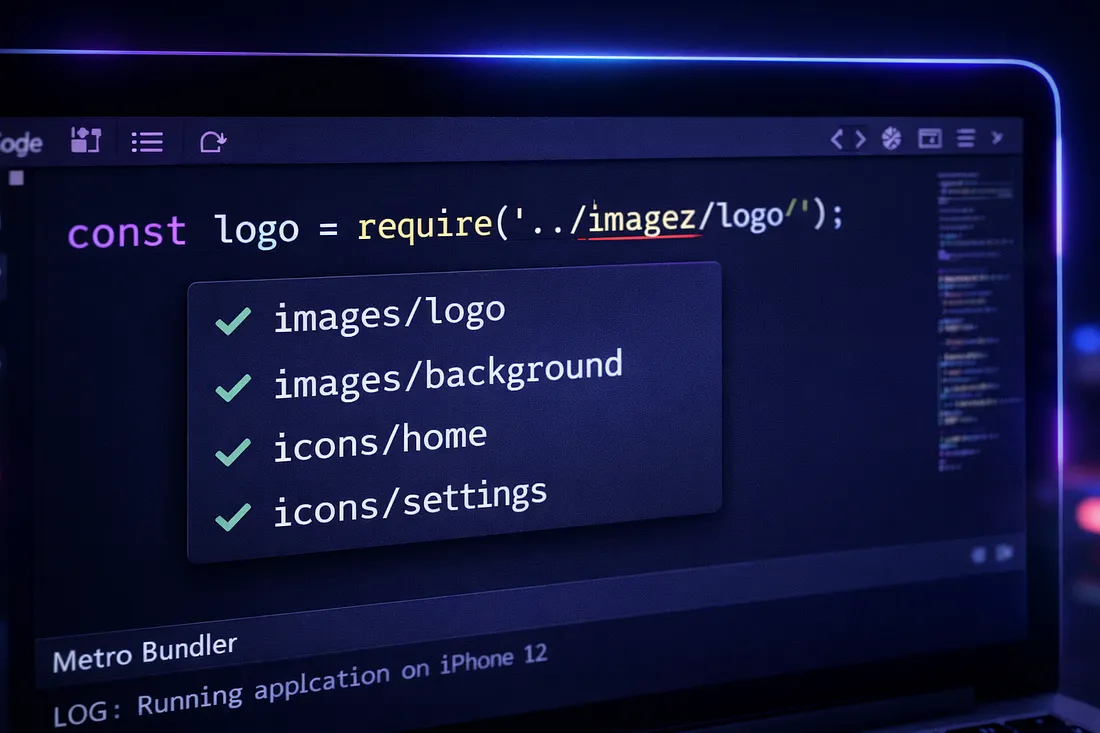
Instead of passing random strings to an Image component, you use the custom <Asset /> component. Thanks to the generated types, your IDE instantly provides autocomplete for every image and icon in your project.
import { Asset } from '@weprodev/react-native-smart-assets';

// ✅ Autocomplete will suggest "images/logo"
// ❌ If you type "images/log", TypeScript will throw an error before you even hit save.
<Asset name="images/logo" size={100} />
2. 🎨 Native SVG Support (with Tinting)
SVGs are treated as first-class citizens. Drop an .svg file into your assets folder, and the library automatically handles parsing and rendering. Need to change the color based on your theme? Just pass a tintColor:
<Asset
  name="icons/home"
  size={24}
  tintColor="#FF3b30" // Works flawlessly!
/>
3. 🌙 Effortless Dark Mode
Press enter or click to view image in full size

If you name your assets with a -dark suffix (e.g., icon.png and icon-dark.png), the library provides a brilliant useAssetTheme hook that listens to the system color scheme and swaps the variants automatically — zero logic required on your end.
import { useAssetTheme, Asset } from '@weprodev/react-native-smart-assets';

function Logo() {
  // Automatically returns 'images/logo-dark' or 'images/logo'
  const { name } = useAssetTheme('images/logo');

  return <Asset name={name} size={100} />;
}
4. 🗜️ Built-in Image Optimization CLI
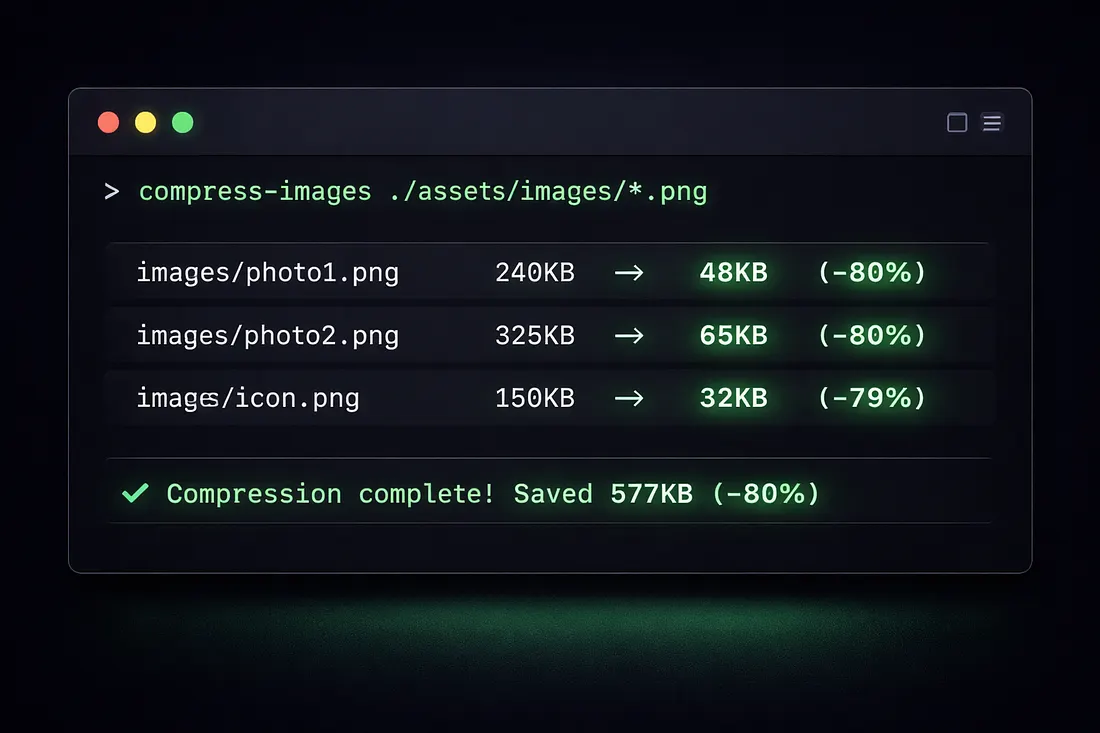
Images are the #1 cause of bloated app bundles. @weprodev/react-native-smart-assets comes with a powerful CLI tool to compress PNGs and JPEGs right from your terminal, warning you about files that are too large.
npx @weprodev/react-native-smart-assets optimizeOutput:
✓ Compressed icons/logo.png: 240KB → 48KB (-80%)
⚠ images/hero.jpg is 2.4MB — recommended max is 512KB
5. ⏳ Skeletons & Placeholders
Nobody likes the jarring layout shift when a large remote image finally loads. The <Asset /> component has built-in support for placeholders shimmer, blur, or color).
<Asset
  name="images/hero-banner"
  size={{ width: 300, height: 200 }}
  placeholder="shimmer"
  placeholderColor="#DDE3EC"
/>
6. ⚙️ Expo Config Plugin — Zero Friction Prebuild
One of the biggest friction points in any asset workflow is remembering to re-run generate every time you add a new file. The Expo Config Plugin eliminates that entirely by hooking into expo prebuild and regenerating the registry automatically — no manual steps, no CI surprises.
// app.config.js
export default {
  plugins: [
    [
      '@weprodev/react-native-smart-assets/plugin',
      {
        assetsDir: './src/assets',
        outputDir: './src/assets',
      },
    ],
  ],
};
Now every npx expo prebuild run guarantees a fresh, in-sync registry:
✓ [react-native-smart-assets] Registry generated — 12 asset(s)
Output: /your/project/src/assets/index.ts
Set failOnError: true to make the build fail hard on errors — great for CI pipelines where a stale registry would be a real problem.
7. 🔒 Babel Plugin — Catch Typos at Build Time
Type-safety via generated types is great, but what about string literal typos that slip through at runtime? The new Babel/Metro plugin catches them at build time— before the app even launches — and tells you exactly what you probably meant.
/ ❌ Build error: Asset "icons/hom" not found.
//    Did you mean "icons/home"?
<Asset name="icons/hom" size={24} />

// ✅ Fine
<Asset name="icons/home" size={24} />
One line in babel.config.js is all it takes:
module.exports = {
  presets: ['module:@react-native/babel-preset'],
  plugins: [
    [
      '@weprodev/react-native-smart-assets/babel-plugin',
      {
        registryPath: './src/assets/index.ts',
        mode: 'error', // 'error' | 'warn' | 'off'
      },
    ],
  ],
};
Under the hood it uses a Levenshtein distance algorithm to generate “did you mean?” suggestions for any unknown name. It validates <Asset name=”…” /> props and getAsset(“…”) / hasAsset(“…”) calls — and silently skips dynamic values so there are no false positives.
Pair both plugins together and you get an airtight pipeline:
expo prebuild        ← plugin regenerates the registry
      ↓
Metro bundler starts ← Babel plugin reads the fresh registry
      ↓
<Asset name="typo"> ← caught immediately as a build error
🛠️ How to Get Started
Setting it up is incredibly simple:
1. Install the package:
npm install @weprodev/react-native-smart-assets2. Generate the types:
Run the CLI. It scans your assets/ folder and creates an index.ts file with your asset registry.
npx @weprodev/react-native-smart-assets generateTip: You can use npx @weprodev/react-native-smart-assets watch to auto-regenerate types as you add or remove files during development — or skip this entirely by adding the Expo Config Plugin!
3. Initialize in your App entry point:
import { setAssetRegistry } from '@weprodev/react-native-smart-assets';
import * as Assets from './assets';

setAssetRegistry(Assets.ASSETS, Assets.ASSET_METADATA);
4. Start using it!
import { Asset } from '@weprodev/react-native-smart-assets';

export default function MyScreen() {
  return (
    <Asset name="icons/rocket" size={48} />
  );
}
Wrapping Up
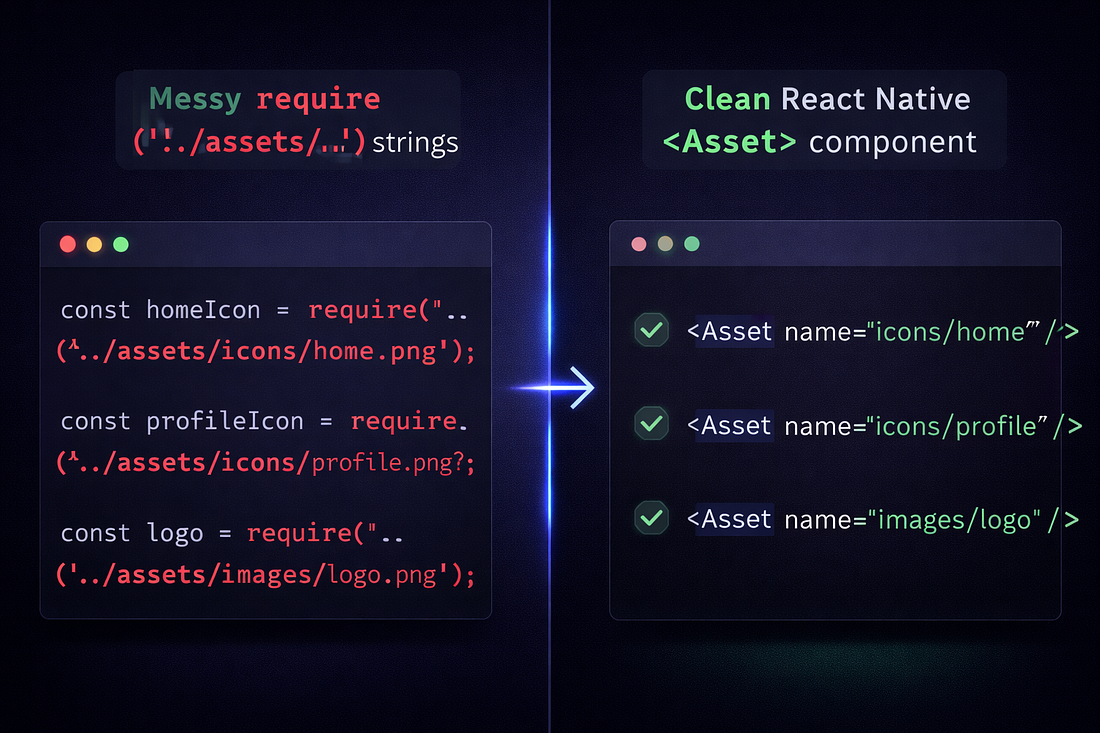
If you are tired of brittle require() statements, runtime blank spaces from typos, and manual bookkeeping around dark mode variants and density suffixes — give @weprodev/react-native-smart-assets a spin.
You get full type-safety, a CLI that optimizes your images, automatic registry sync on prebuild, and build-time validation that catches mistakes before they ever reach a device.
Your IDE (and your future self) will thank you.
GitHub Repository: @weprodev/react-native-smart-assets
NPM: @weprodev/react-native-smart-assets
Happy Coding! 🚀